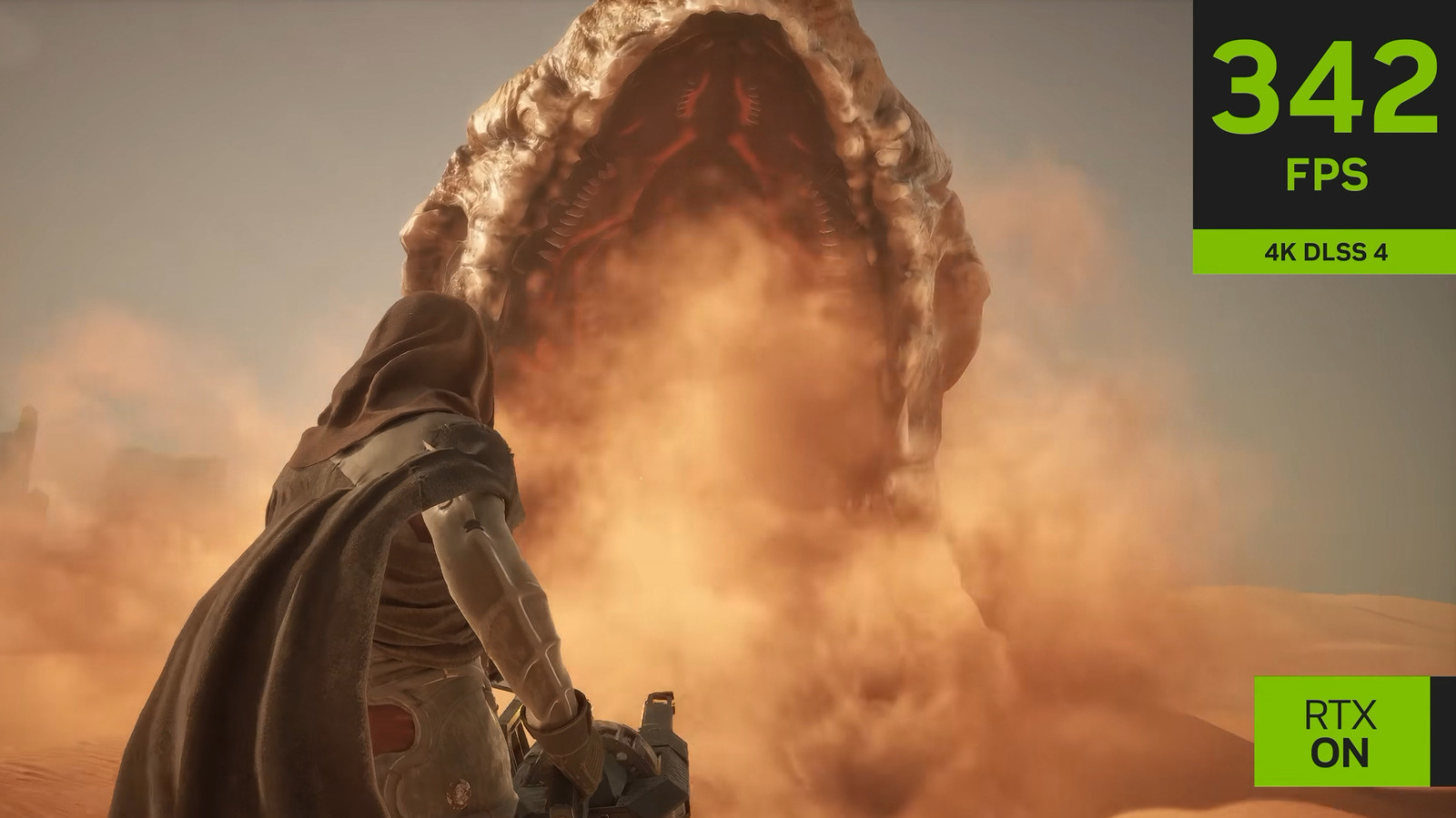
Like it or lump it, there's no getting away from upscalers if you're a PC gamer who loves modern AAA titles. For those on the NVIDIA side of the divide, the company's Deep Learning Super Sampling tech is increasingly needed if you want to run graphically demanding games at high frame rates with ray tracing whacked all the way up. If you regularly deploy DLSS 4.5 in games, there are tweaks you can make through the NVIDIA app to squeeze better performance and cleaner visuals from your favorite titles.
The internet remains very upset about NVIDIA's DLSS 5, and rightfully so. Thankfully, DLSS 4.5 is focused purely on delivering the best balance between image quality and performance, not needlessly yassifying in-game character models. We'll run you through DLSS 4.5's K, L, and M presets, how they compare to each other, and what hardware is best suited to each. We'll also touch on in-app tweaks you can make to reduce visual glitches that may occur if you enable frame generation.
There's no real "best" preset, per se. It's more a case of judging what the most suitable option is for striking the right balance between visual quality and performance, which ties into how powerful your GPU is. To switch between DLSS 4.5's various presets via the app, go to Graphics > Global Settings > DLSS Override – Model Presets.
First up, preset K has been designed to deliver the best image quality, so it should be the go-to for folks who own the highest-end gaming PCs (more on that shortly).
Source link