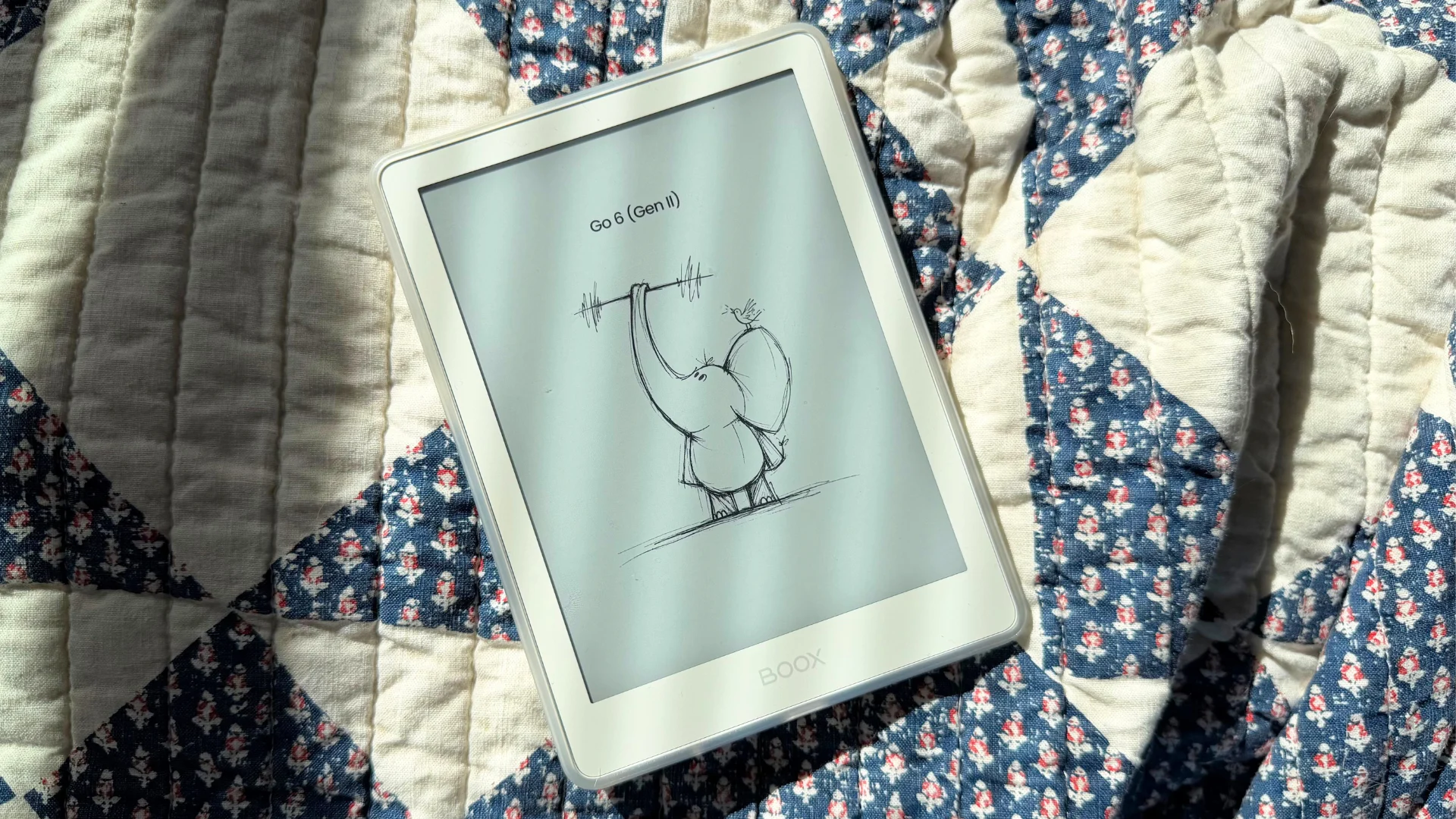
I love e-readers like a Kindle or Kobo because within minutes of turning them on, you can be reading. But I also appreciate the versatility of Boox e-readers, which run on Android and offer readers so much flexibility. With a Boox e-reader, you're no longer trapped in one e-reader's system.
Unlike Kobo and Kindle, Boox e-readers are a little less straightforward. Technically, they're E Ink tablets running Android and capable of so much more, but that also means there are more settings and features to dig through.
There's a little bit of a learning curve on the Boox, which is initially off-putting. But now that I'm well acquainted with all the settings on a Boox, I really love using this e-reader.
So if you just got a Boox tablet or are looking forward to grabbing the new Palma 3, here are my favorite settings to change on the device.
Potentially the best tip I took from the internet is adding the navigation bar to my Boox e-reader. When you set up a Boox, the system prompts you to pick between gesture navigation and a navigation bar. While the gesture system works similarly to what you use on a smartphone or tablet, the navigation bar is far more convenient.
It puts common menus like a home button or an option to see all your open apps within reach. You can even customize the navigation bar in system settings.
Boox automatically turns on the NaviBall feature on its e-readers, a small button that stays on your screen and performs whatever action you assign it.
Source link