
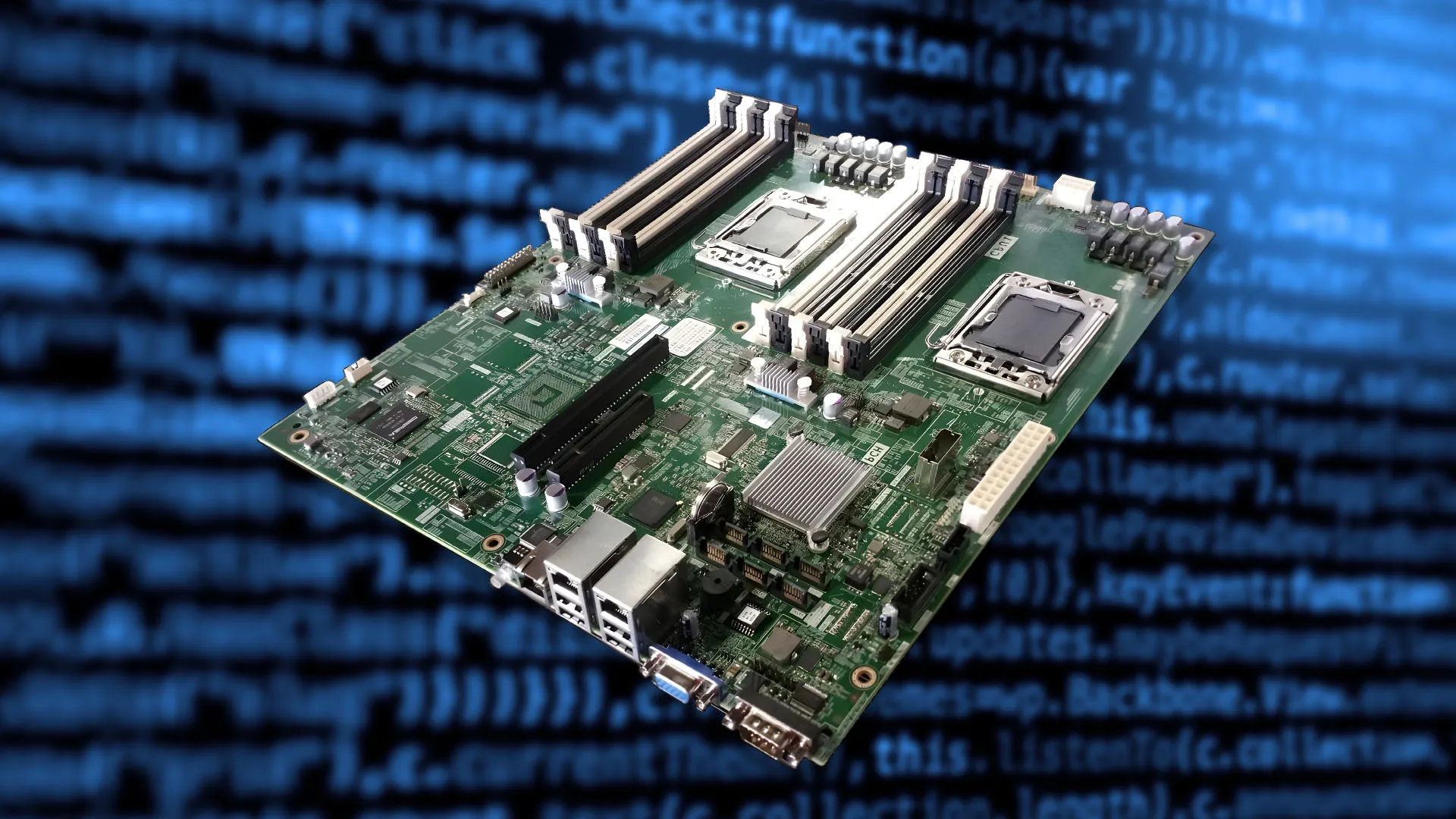
If you're planning to upgrade your CPU, install more RAM, update your BIOS, or troubleshoot performance issues in your favorite games, the first thing you'll need to know is your motherboard model. Since the motherboard controls which components your system can support, identifying the model is often the first step before any hardware upgrade.
The easiest way to check is by pressing Windows + R, typing msinfo32, and pressing Enter. Under System Summary, you'll find BaseBoard Manufacturer and BaseBoard Product, which reveal your motherboard's brand and model.
Find out how to check your PC's RAM and memory usage on Windows to see if an upgrade is needed.
System Information is built into every modern version of Windows and is the easiest way to identify your motherboard.
If you've bought a prebuilt PC and don't know what hardware is inside, System Information is usually the fastest way to identify your motherboard without opening the case.
If you prefer a faster text-based method, Command Prompt can display your motherboard information instantly.
While Windows includes built-in tools for identifying your motherboard, third-party hardware tools can get you additional details.
One of the most popular options is CPU-Z. After installing it, open the application and select the Mainboard tab.
You'll immediately see detailed information about your motherboard, including the manufacturer, model number, chipset, BIOS version, and graphics interface details.
CPU-Z is a favorite among PC gamers , system builders, and hardware enthusiasts because it gathers information that Windows doesn't always display. It's especially useful when you're planning upgrades and need to verify exactly what hardware your system supports.
Source link





![Hideo Kojima reviews Zach Cregger's Resident Evil: "It reminded me how I felt when I played the first [game]"](https://images.themorningpulse.fyi/uploads/2026/10/rss-mv542ljq-ne5uur-media.jpg)