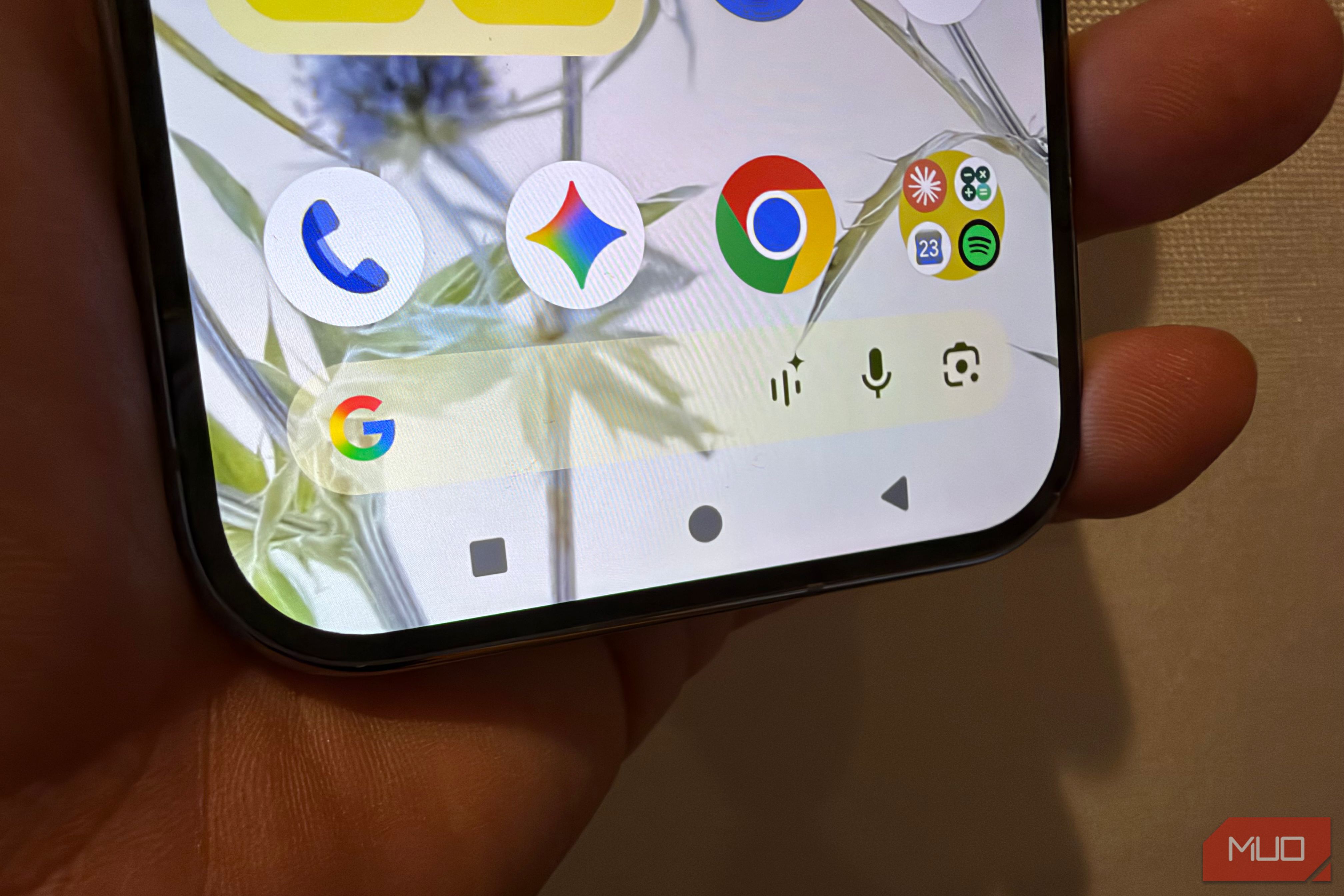
For years I've defaulted to the gesture-based navigation on Android that puts a little navigation pill at the bottom of the screen. Until I revisited the other option—on-screen buttons—I thought gesture navigation was better because it always felt more fluid to me, plus it took up less space on the screen.
But once I learned about all the features buttons enabled, like fast app switching and the fastest possible way to access Circle to Search, I switched my phone to buttons and found myself doing certain tasks I didn't know I could do, this time with dedicated buttons.
Here are all the cool things that turning on buttons on your Android lets you do.
Turning on buttons is easy. If you have a Pixel, just go to Settings > System > Navigation mode
If you're using a Samsung Galaxy, the path is Settings > Display > Navigation bar.
The main downside to turning on buttons is that it takes up a bit more vertical space than gesture navigation, though I think the navigation shortcuts the buttons enable is worth the tradeoff.
Switching between two apps on a PC is as easy as using Alt+Tab (or on Mac, it's Command+Tab).
You can switch between apps instantly with Android buttons enabled by double-tapping the square Recents button, and I find this action to be faster and more reliable than sideswiping the navigation pill, which also lets you move between recent apps quickly, though with a lot more thumb movement and without the dedicated tap target.
Source link