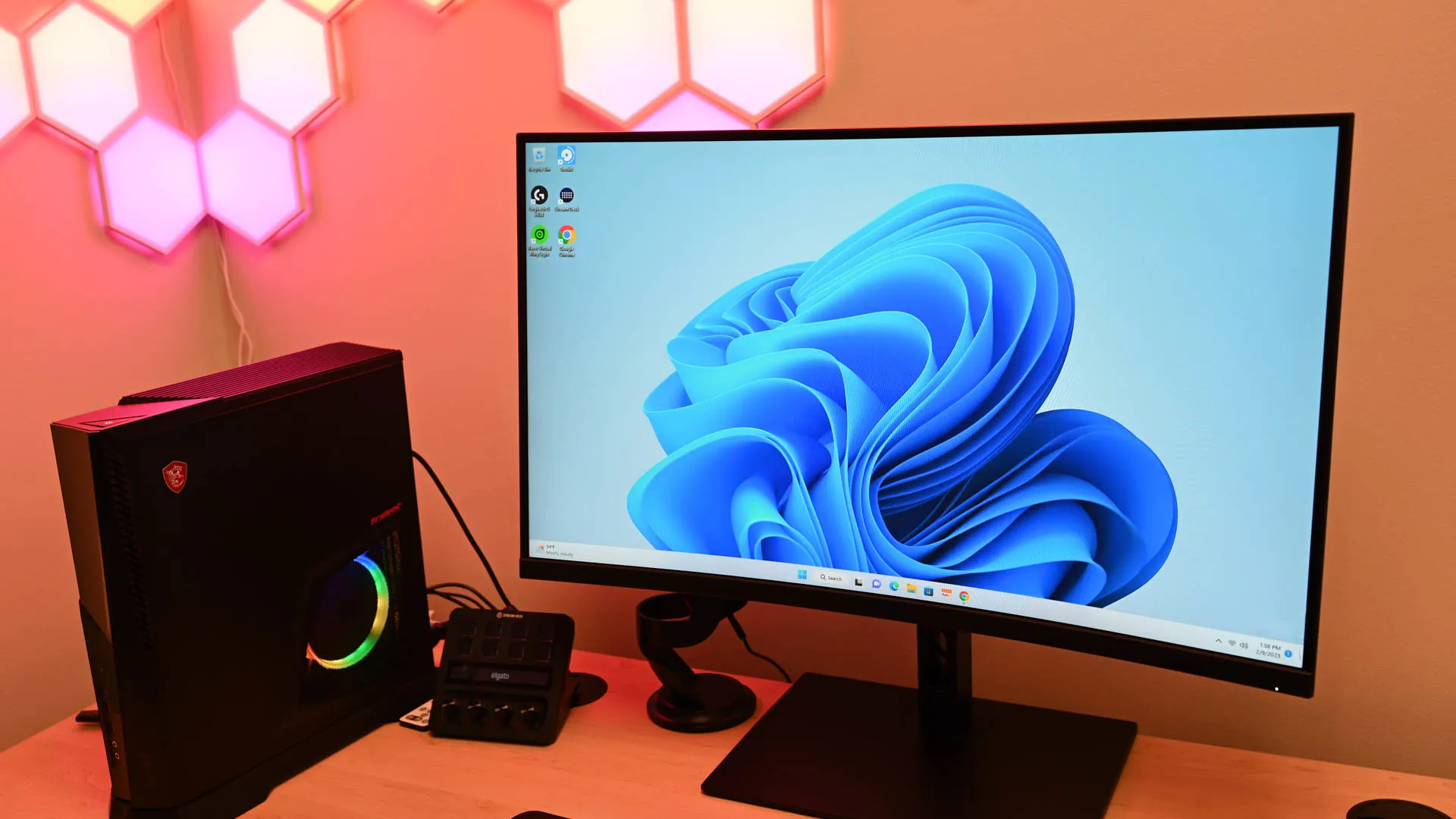
If you've used Windows for a long time, you probably remember the "My Computer" icon sitting on your desktop, ready to give you access to your drives and folders. These days, Windows calls it "This PC," but Windows 11 doesn't put the icon on your desktop by default. If you want that familiar icon back, you can add it in a few clicks.
If you pin lots of folders to "Quick access" in File Explorer, the navigation pane can get pretty crowded. Having This PC on your desktop gives you another way to get to your folders without working through that increasingly busy sidebar.
It also gives you a useful starting point for browsing your computer's files and storage. From there, you can see your internal drives, external drives, and other connected locations in one place.
And if you've been using Windows for years, there's something reassuring about having that familiar computer icon on the desktop where you expect it to be.
You can drag This PC from File Explorer onto the desktop to create a shortcut. But if you want the actual Windows This PC icon, it's better to use Windows' Desktop icon settings. It adds This PC as a built-in Windows icon rather than a shortcut file, and you can switch it on or off (or change its icon) from the same window as the other system icons.
You'll now see the This PC icon on your desktop. Double-click it, and Windows opens the This PC view in File Explorer, where you can browse your drives, folders, and connected devices just as you normally would.
Source link