PowerToys is one of my favorite free Windows utilities. With more than 30 tools, it offers something for everyone from beginners to power users. Here's what's new for mousing.
Ever have trouble using your mouse? Sometimes selecting a large block of text proves to be a challenge. Other times, your mouse cursor may get in the way of what you’re trying to type or see. Now Microsoft can help you resolve both issues via the latest version of its free PowerToys utility.
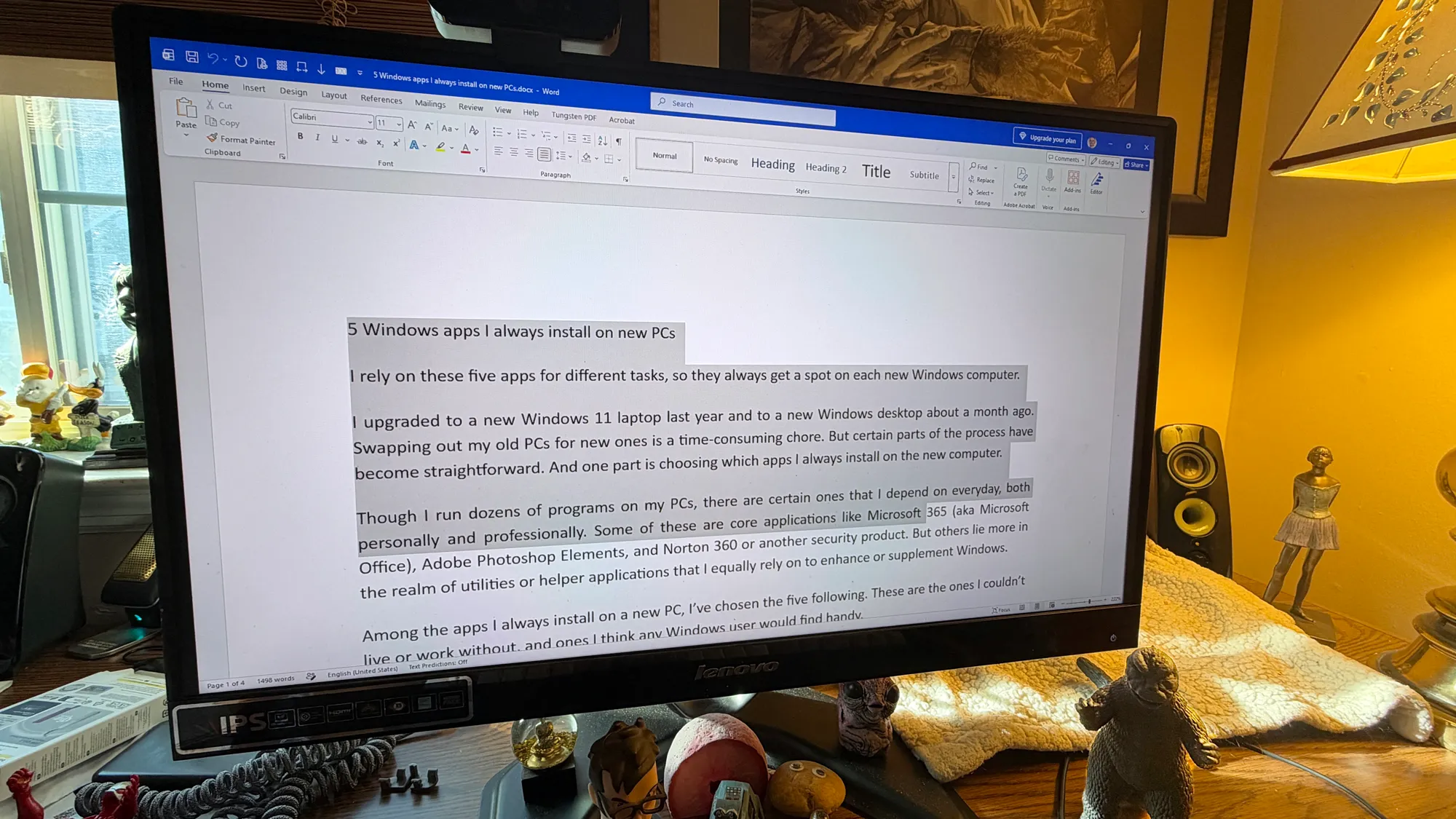
Also: 5 apps I always install on new Windows PCs – and most are free
Popping up in the official release of PowerToys version 0.102 are two new tools for you to mouse around with. One is called Mouse Button Lock, while the other is known as CursorHide. I’ll explain how to use each one. But to try them yourself, you’ll first need to install or update PowerToys.
To install the program from scratch, go to the PowerToys Microsoft Store page and click the Download button. Or, you can head to the PowerToys GitHub page and click the correct exe file for your flavor of Windows. To update an existing installation, open PowerToys from the Start menu or the System Tray and click the button to check for updates or select the notice to grab the latest version.
With PowerToys running, select the category for Input & Output on the left and click Mouse Utilities. You can then check out the details on both Mouse Button Lock and CursorHide and turn on the switches for either or both.
Source link