
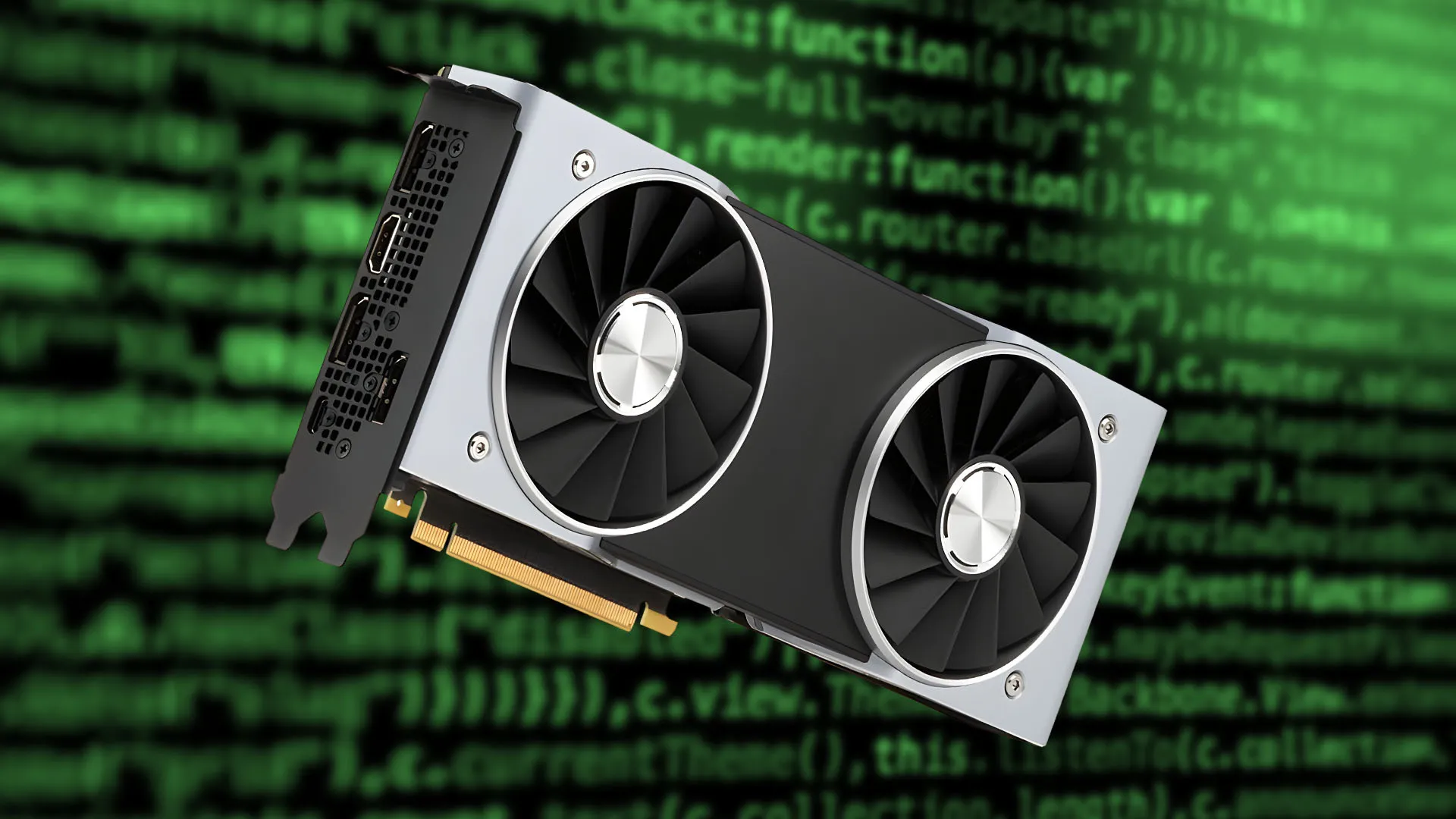
Graphics card drivers are what keep your GPU running properly. For PC gamers, they matter even more because they directly affect game performance, stability, and FPS. If your drivers are old or not working properly, you’ll probably notice stuttering, crashes, or games not running as smoothly as they should.
Thankfully, you can check and update your graphics card drivers on Windows 10 or Windows 11 using Device Manager, Windows Update, or the official NVIDIA, AMD, or Intel software, depending on your setup.
Valve game distribution platform Steam releases an update that adds a new, helpful feature that PC gamers can start using right away.
To see what graphics card is installed on your computer, open the Start menu and search for Device Manager, then open it.
Inside Device Manager, look for Display Adapters and click the small arrow next to it. This will show all graphics cards currently installed on your system. Some computers may show one GPU while others may show two, such as integrated Intel graphics and a dedicated NVIDIA or AMD graphics card.
If you are not sure which GPU you actually have, you can also open Task Manager, go to the Performance tab, and click on GPU. This will clearly show the exact model name of your graphics card and make things a lot easier.
Once you know your graphics card, right click on it inside Device Manager and select Update Driver. Then choose Search automatically for drivers. Windows will scan and tell you if you are already using the latest version or if a newer driver is available.
Source link

![Hideo Kojima reviews Zach Cregger's Resident Evil: "It reminded me how I felt when I played the first [game]"](https://images.themorningpulse.fyi/uploads/2026/10/rss-mv542ljq-ne5uur-media.jpg)