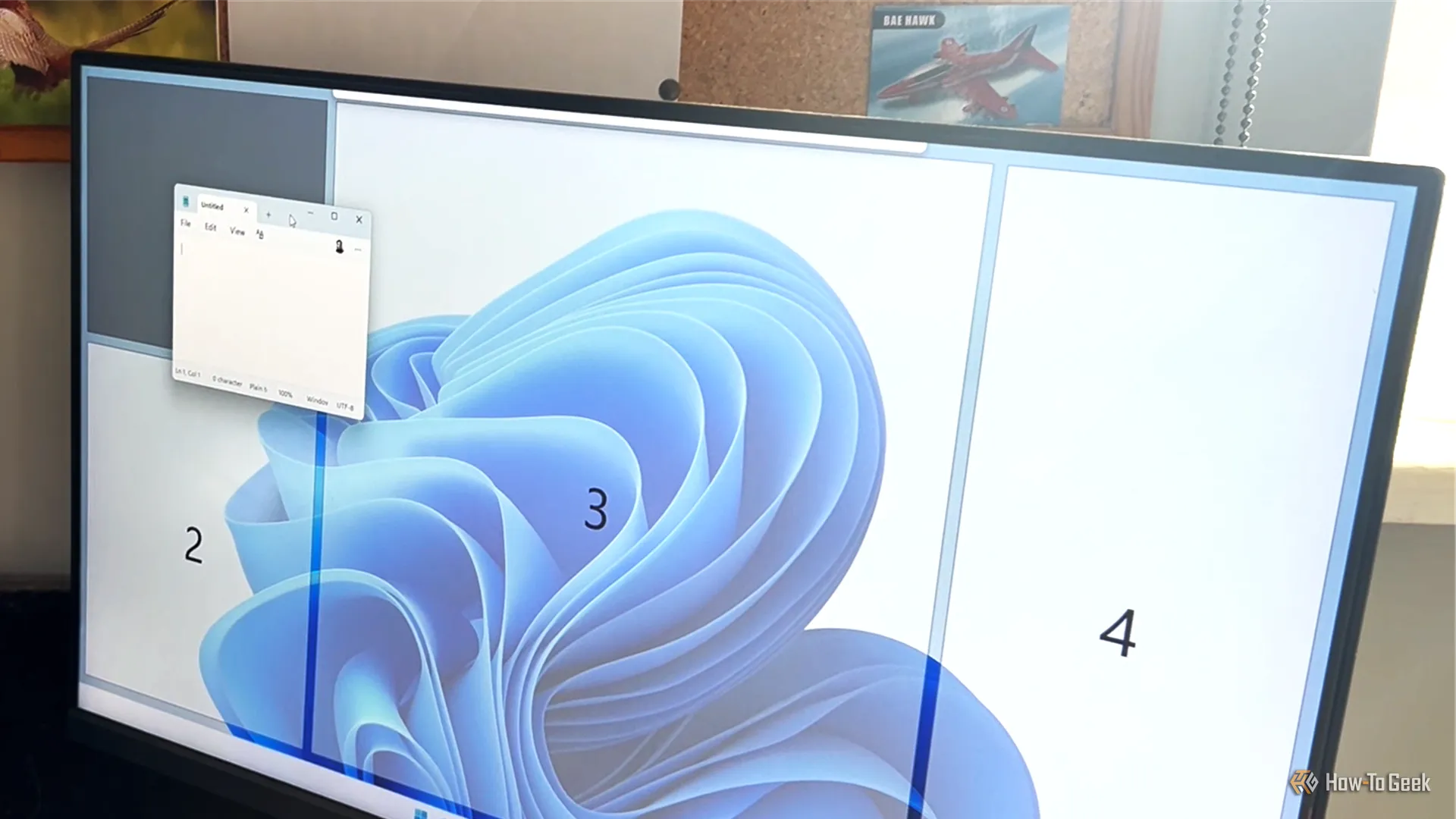
I've spent years working in Windows, and one of the little things that always annoyed me was having to resize and reposition windows whenever I wanted to fit several on screen at once. Windows' built-in Snap feature helps with this, but I often want a layout that's more specific to my workflow. That's where PowerToys FancyZones comes in.
Don't be misled by the name, though: PowerToys isn't only for power users, and FancyZones isn't as fancy as it sounds. It's quick to set up, and once you have, you can easily create a window layout that suits the way you work.
Don't confuse FancyZones with Workspaces, another PowerToys utility. FancyZones arranges the windows you already have open into reusable zones, while Workspaces remembers which apps you want to open and where their windows should appear.
PowerToys is Microsoft's collection of Windows utilities, and you can install it from the Microsoft Store. Once it's installed:
In my version of PowerToys (v0.101.2632.0), FancyZones appears in the Quick access section, where I can click it to open the FancyZones window. The PowerToys interface can vary slightly between versions, however, so if you don't see it there, go to Windowing & Layouts > FancyZones and click Open layout editor.
If you have more than one monitor, the first thing you'll see in the FancyZones Editor is the option to select which one you want to modify. In other words, you can configure different layouts for different screens. So select the screen you want to configure first.
Source link