Many ML practitioners have some intuition about how to make models run fast, but fewer know how to analyze why a model is slow. In Part 1 of this series, you will learn how to systematically analyze inference performance and identify where the time is spent.
This post starts from scratch and assumes no prior profiling experience. The walkthrough uses AWS Trainium, a purpose-built AI chip for deep learning training and inference workloads, and TorchNeuron, its open source native PyTorch backend. TorchNeuron supports standard PyTorch workflows on Trainium, including eager execution, torch.compile, and standard PyTorch APIs, with minimal code changes. Additionally, TorchNeuron integrates with Neuron Kernel Interface (NKI) to enable custom operators and performance optimization for Trainium hardware. By the end, you should know:
Before you profile a workload, it helps to understand how Neuron integrates with PyTorch.
The Neuron backend uses PyTorch's PrivateUse1 extension point. This mechanism lets an accelerator integrate with the framework without adding a dedicated dispatch key such as cuda. The torch_neuronx package works with upstream PyTorch to register Neuron as a native backend for PyTorch code. For details about this extension mechanism, see Facilitating New Backend Integration by PrivateUse1.
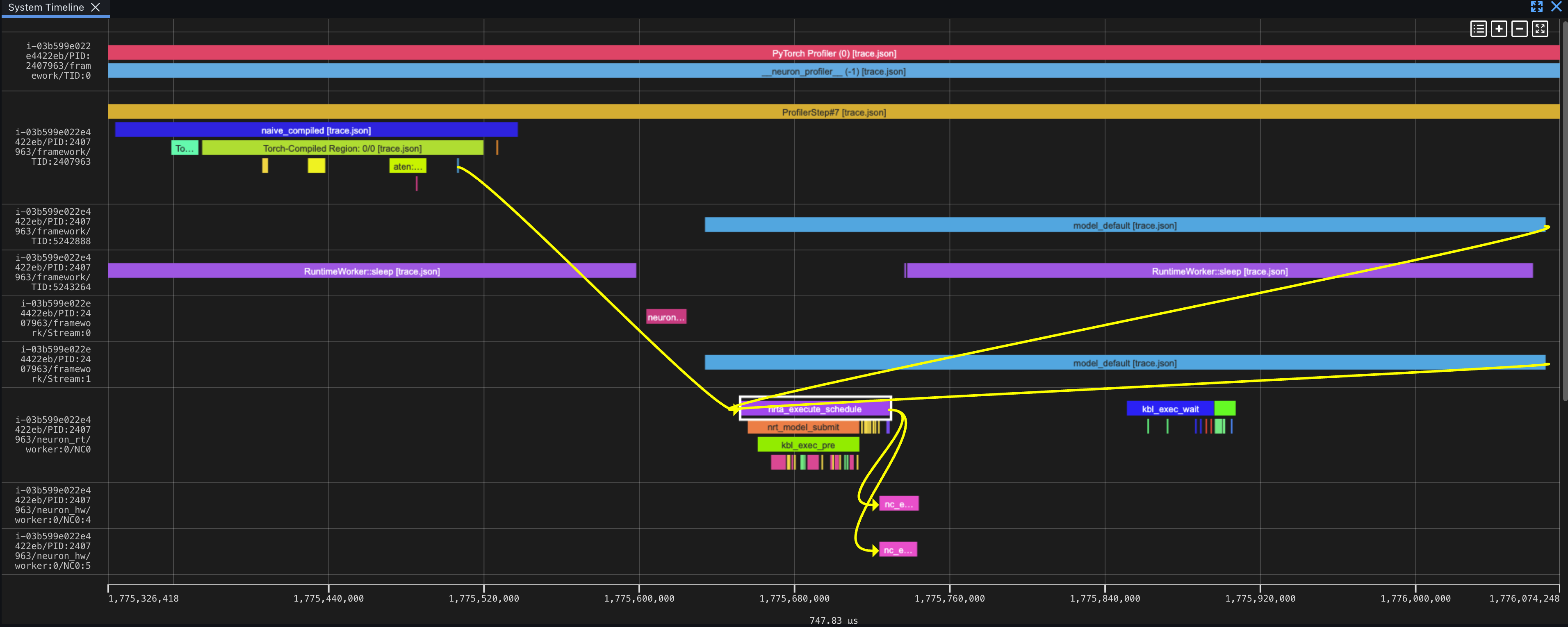
The modes parameter selects the data streams to capture, such as device instructions and runtime traces. The capture_enabled_for_nc parameter selects the NeuronCores to trace. Setting correlate_device_time=True propagates device time from the trace into the key_averages() table, where you can compare CPU and Neuron device time. For the complete parameter reference and available ProfileMode values, see the NeuronConfig Profile Modes documentation .
Source link