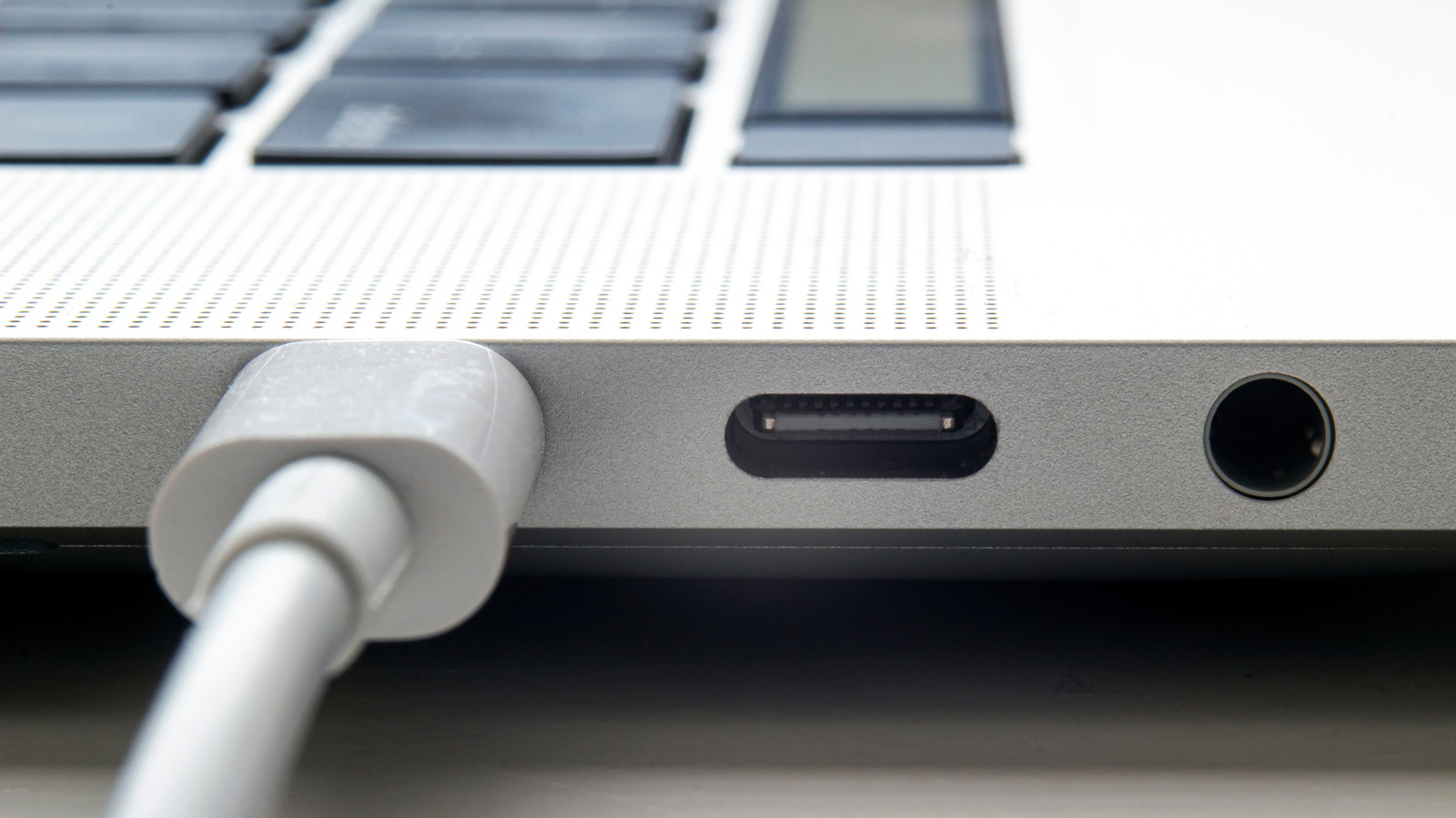
USB wouldn't be what it is today without Apple. The format predates the original iconic iMac — but Apple's gumdrop-shaped computer helped popularize it by ditching all the legacy connectors that had been haunting the industry. USB became so commonplace, in fact, that the push came back to bite the company, with European Union regulations forcing it to ditch Lightning ports on iPhones. The days of Apple-exclusive ports are effectively over, MagSafe being the major remaining holdout.
Modern USB Mac accessories tend to be well-behaved. On occasion, though, macOS can fail to detect them, which is understandably maddening. With USB being as widespread as it is, anything less than a seamless experience feels unacceptable.
The good news is that there are known hardware and software explanations for why this happens, like damaged cords or an accessory that requires more power. In many situations the fixes are remarkably simple, particularly on the macOS side. There are rare instances, however, where you may need to seek outside help.
The first thing to remember is that by default, macOS requires you to give permission for accessories to connect. This prevents malware from being injected. At the same time, if you accidentally reject a permission prompt, a legitimate accessory won't transmit data until you give the green light. Charging should still work in either direction.
Typically, you can force macOS to re-display the permission prompt by unplugging an accessory and plugging it back in again. To minimize future hassle, though, go to Apple menu > System Settings > Privacy & Security , then scroll down to the Accessories section.
Source link