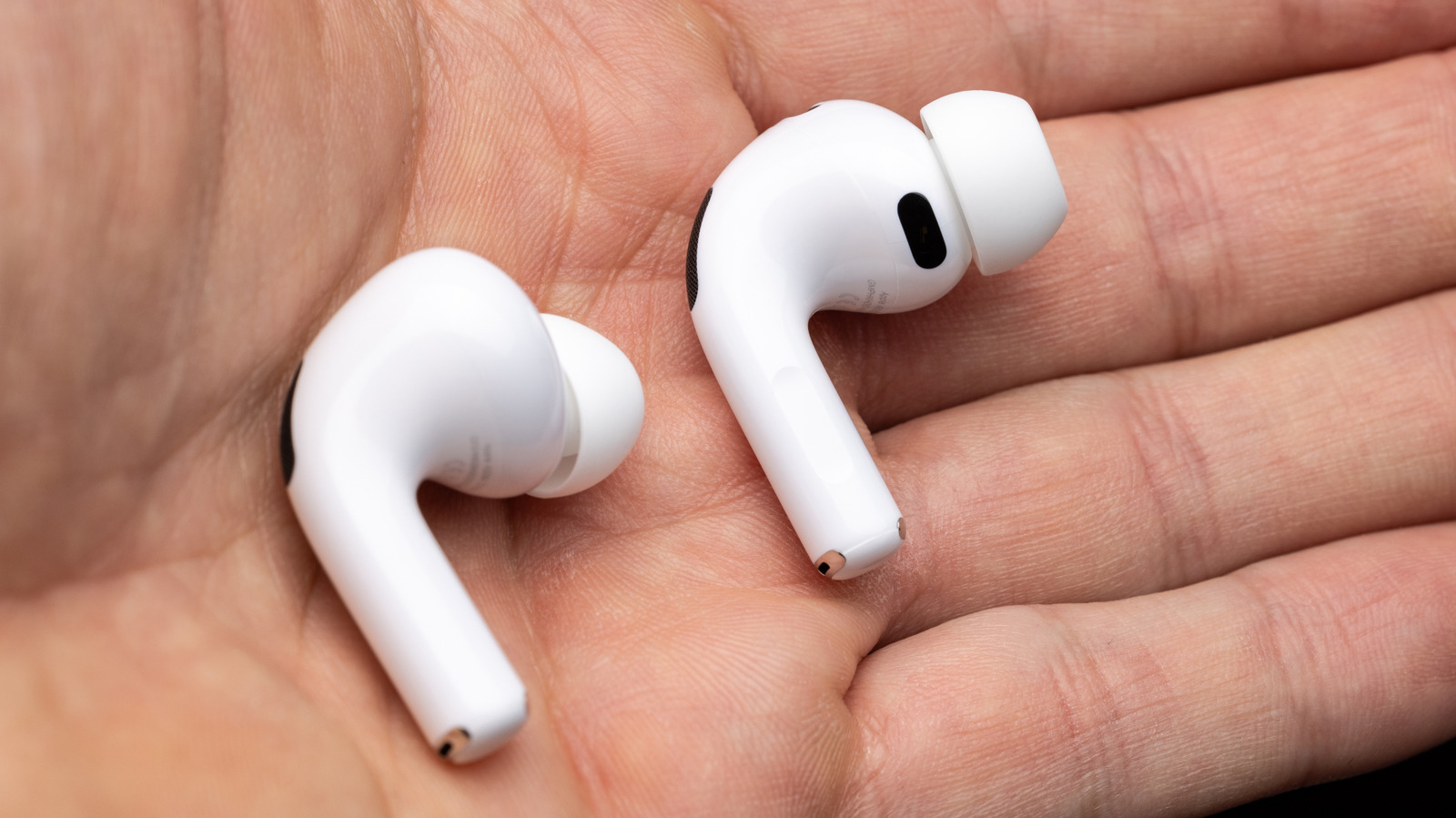
Before blaming Bluetooth, check where your AirPods are getting their orders from.
If your AirPods keep disconnecting, it's doubtful the AirPods themselves are broken, though that's always a possibility. The best course of action is a process of elimination, starting with checking automatic switching. This feature is available on all AirPods Pro and AirPods Max models, plus AirPods 2 or later.
Let's say you have your iPhone, an iPad and a Mac. If you use your AirPods on all three, or have in the past, those bothersome disconnections may not be disconnections at all, but rather the AirPods trying to bounce back and forth among all three devices. It's aggravating, but you need to make changes on all three to put a stop to it.
The setting you want is called Connect to this iPhone/iPad/Mac. First, put your AirPods in your ears. On iPhone or iPad, you should see your AirPods appear near the top of the Settings app. There, select your AirPods > Audio & Routing > Connect to this iPhone/iPad and choose When Last Connected to This iPhone/iPad.
Alternatively, or in System Settings on a Mac, open Settings > Bluetooth and select the little i in a circle next to your AirPods. If the AirPods aren't currently connected, choose Connect to This [Device] > When Last Connected to This [Device]. If they are connected, open the same Audio & Routing menu first.
If you mostly use your AirPods with one device, leave this setting on Automatic there and switch it to When Last Connected on your other Apple devices.
Source link