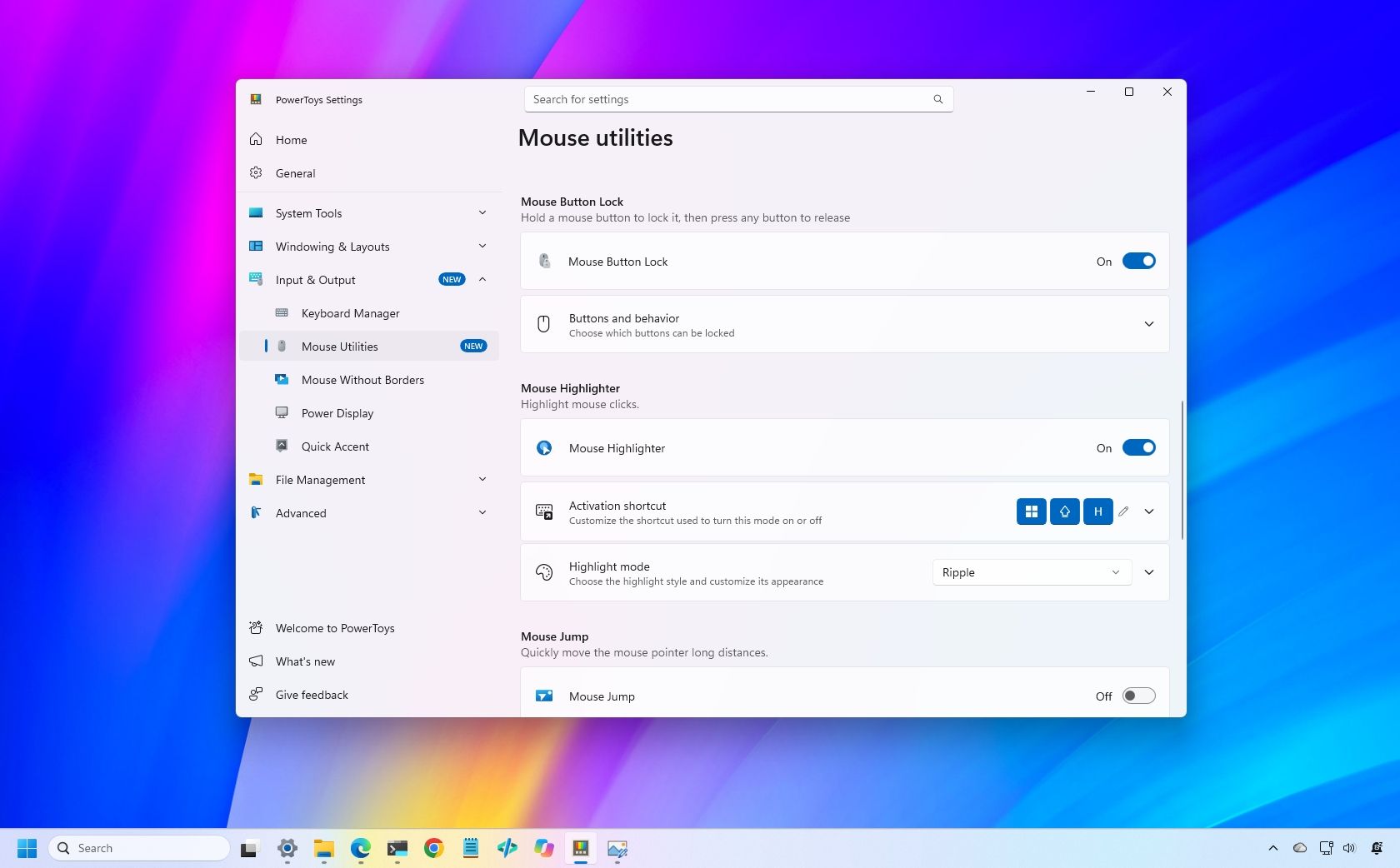
PowerToys, the "Swiss Army knife" of Windows 11, is now available in version 0.102, introducing several features designed to improve your desktop experience.
This release adds Mouse Button Lock to make dragging and selecting items easier, while CursorHide automatically hides the mouse pointer under specific conditions. Command Palette also gets an update with quick access to frequently used commands. In addition, PowerToys expands its command-line and automation features, and ZoomIt now lets you use voice input to set image descriptions.
In this guide, I'll highlight the five new features and improvements in PowerToys version 0.102 and explain how they can help you get more out of Windows 11.
Selecting large groups of items or dragging files across the desktop can get tiring when you have to hold a mouse button down for an extended period. Starting with version 0.102, PowerToys introduced Mouse Button Lock to make these actions easier.
When this feature is enabled, you can press and hold a mouse button briefly, then release it. PowerToys keeps the button virtually held down, letting you keep selecting items or dragging files without physically holding the button. To release the hold, simply click any mouse button.
Mouse Button Lock can help when you're working with large file selections, moving items, or doing tasks that require extended dragging. It can also improve accessibility for people who have difficulty holding a mouse button down for long periods.
You can enable the feature in PowerToys > Input & Output > Mouse Utilities by turning on the "Mouse Button Lock" toggle switch.
Source link