A few settings changes can stop your iCloud from filling up again.
Apple doesn't give you very much iCloud storage when you purchase one of its products, and no matter how many of its devices you buy, you never get more than a stingy 5GB. Since almost everything you sync or back up with Apple shares that space, how do you free up space once iCloud gets full?
That space is occupied by all your photos, videos, backups, mail, mail attachments, data from apps like Messages and Notes, the contents of your iCloud Drive and some third-party app data — even images stored in Shared Albums, which began to count against your storage with iOS 27.
You can upgrade your iCloud subscription from just $0.99 a month for 50GB, but deleting costs nothing. You can delete data held in files, photos, app backups, voice memos and everything else, either on your Apple device or via the iCloud website. However, anything you delete will be gone after a 30-day delay. Keep in mind that anything you remove from any of your apps, including photos and videos, will disappear across all your devices.
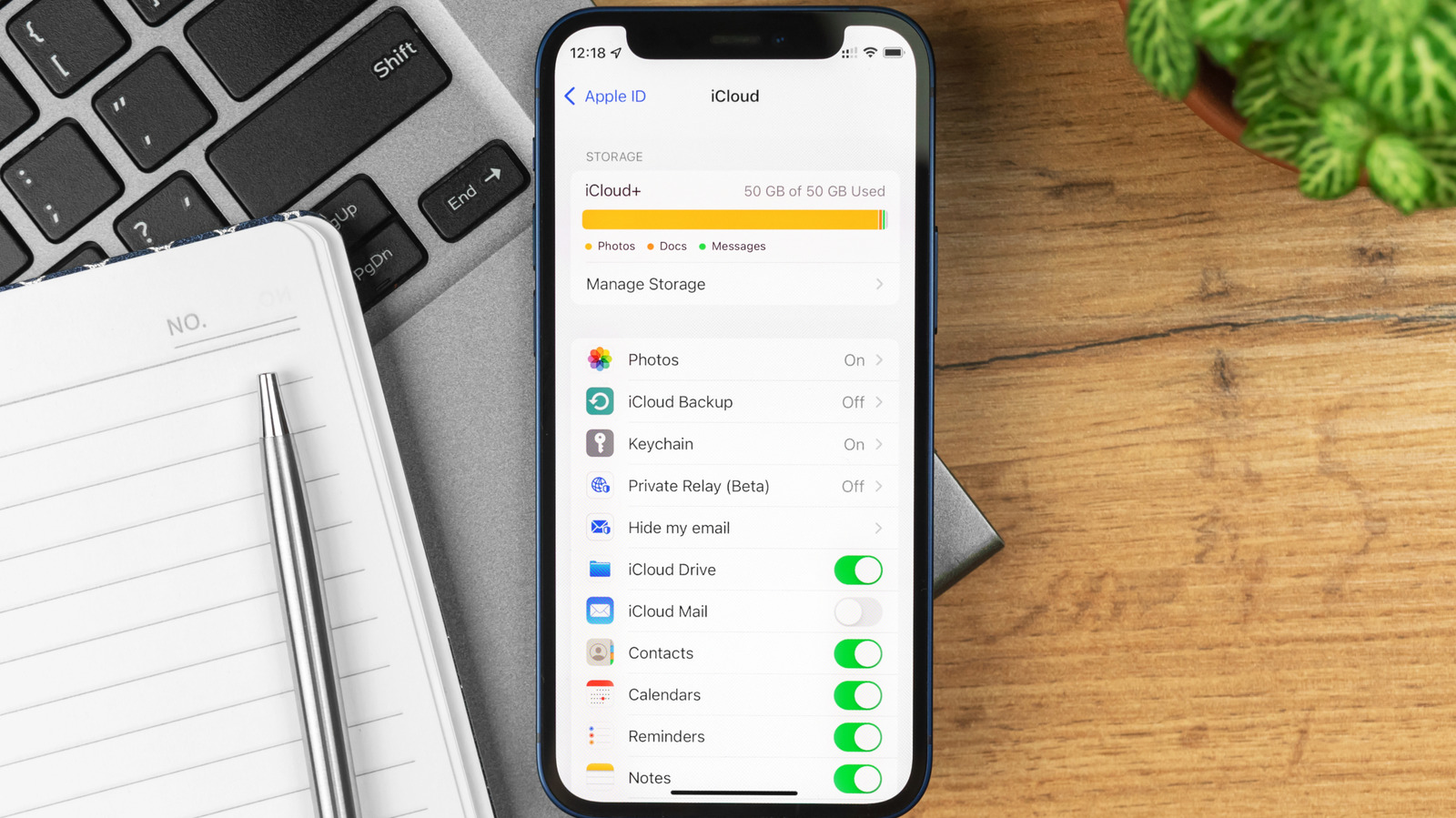
You can check how much storage is being used and by what in iCloud Settings on your device or on the iCloud website. Go to Settings > [Your Name] > iCloud. Then click Manage (on Mac) or tap Storage (on iOS) to reach the storage management section. Note that on a Mac, Settings is called System Settings.
Here you can review a list of all the apps taking up storage space, ranked by size.
Source link