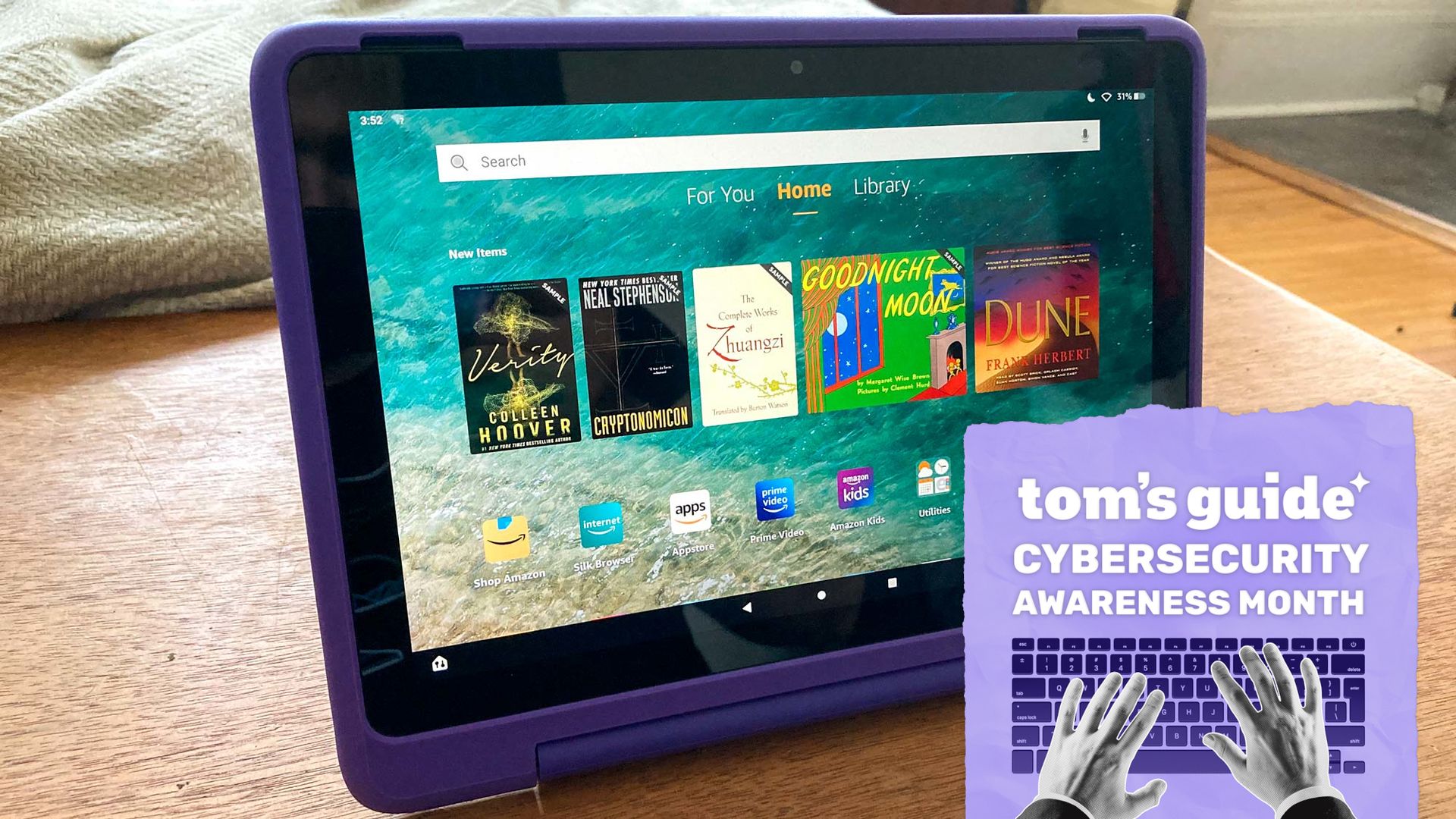
Whether you're worried about your smaller child accidentally clicking through the wrong apps, or maybe an older child that’s a little too curious for their own good, you should know how to secure their new tablet.
Here’s how to establish a safe space for your child to use your device.
One of the simplest tablets to set up for your kids is the Amazon Fire Kids Tablet. I’ve used it for my own kid for many years, and while it does have its frustrating quirks, it does get the job done. Bear in mind this is effectively just a Fire Tablet with a colorful case, so it does include an adult profile that is necessary to set up to manage the device.
After you’ve created your profile, you’ll create an Amazon Kids Profile. It’ll guide you through a list of settings that you can customize to your child’s needs and send them on their way. In order to monitor and adjust settings on the tablet, go to the Amazon Parent Dashboard (you can do this remotely). From here you can adjust settings like time limits on apps, content filters, and even add content from an adult library. For example, I had to manually add HBO so I could put on Sesame Street.
If you do need to lock the device down for any reason, you can hit Pause or Lock Device on the Amazon Parent Dashboard. You can set a duration or set it indefinitely until the device is unlocked by you.
Source link